> ## Documentation Index
> Fetch the complete documentation index at: https://docs.taxibutler.com/llms.txt
> Use this file to discover all available pages before exploring further.
# How to use the Taxi Butler ONE
> The Taxi Butler ONE is the simplest taxi booking device on the market. It lets venue staff, concierges and receptionists book taxis in just one click.
## Device overview
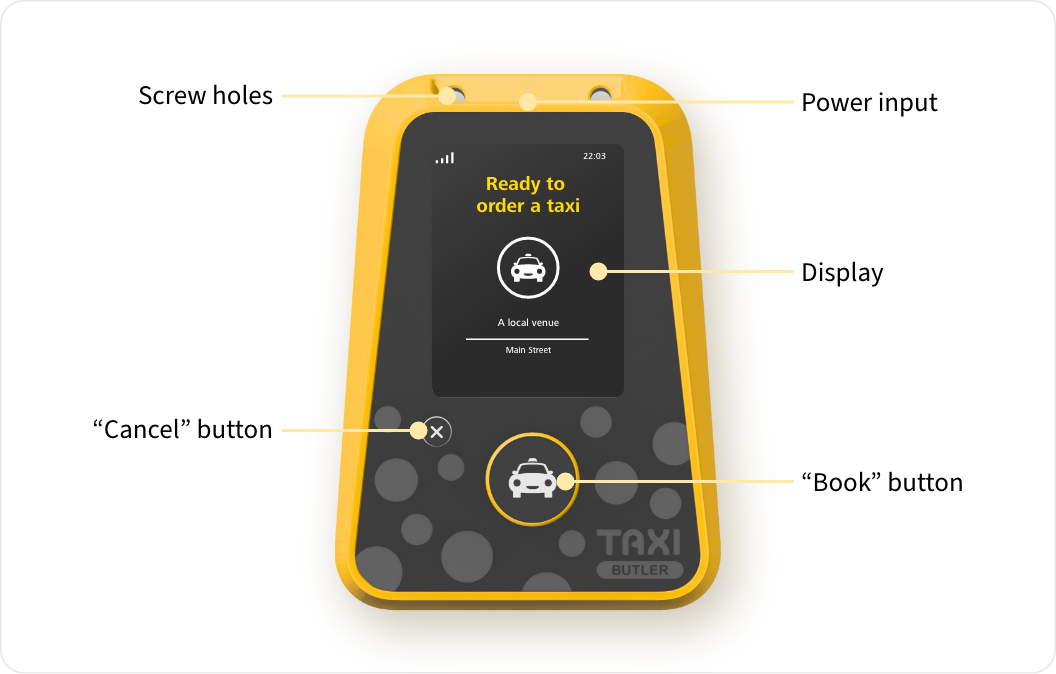 The Taxi Butler ONE features:
* A display to show taxi bookings and their statuses
* A physical "book" button to book a taxi
* A physical "cancel" button to cancel a taxi
* A power input for plugging into the mains-power
* Two screw holes for securing the device to a wall or surface
* A built-in SIM card for connecting to the internet
## How to book a taxi
To book a taxi with the Taxi Butler ONE, venue staff must press on the physical "book" button.
The Taxi Butler ONE features:
* A display to show taxi bookings and their statuses
* A physical "book" button to book a taxi
* A physical "cancel" button to cancel a taxi
* A power input for plugging into the mains-power
* Two screw holes for securing the device to a wall or surface
* A built-in SIM card for connecting to the internet
## How to book a taxi
To book a taxi with the Taxi Butler ONE, venue staff must press on the physical "book" button.
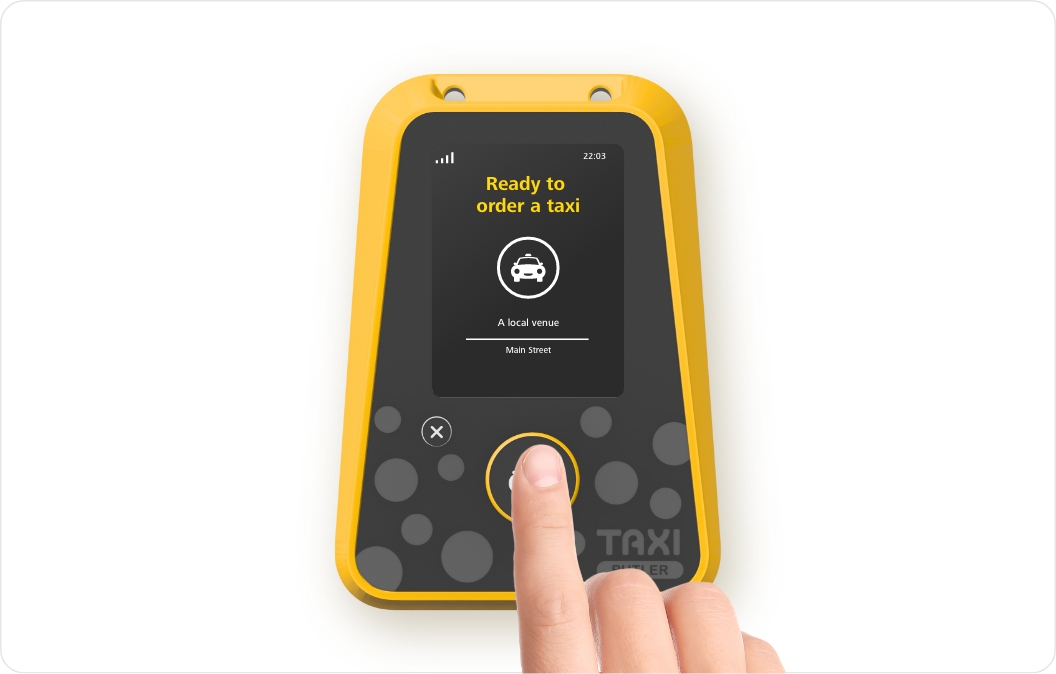 The Taxi Butler ONE also has a [Secondary booking mode](/fleets/portal/venues/configuring-devices) to allow users to book a second type of vehicle. Quickly press the "book" button twice to book the second type of vehicle, if configured.
## How to track a taxi
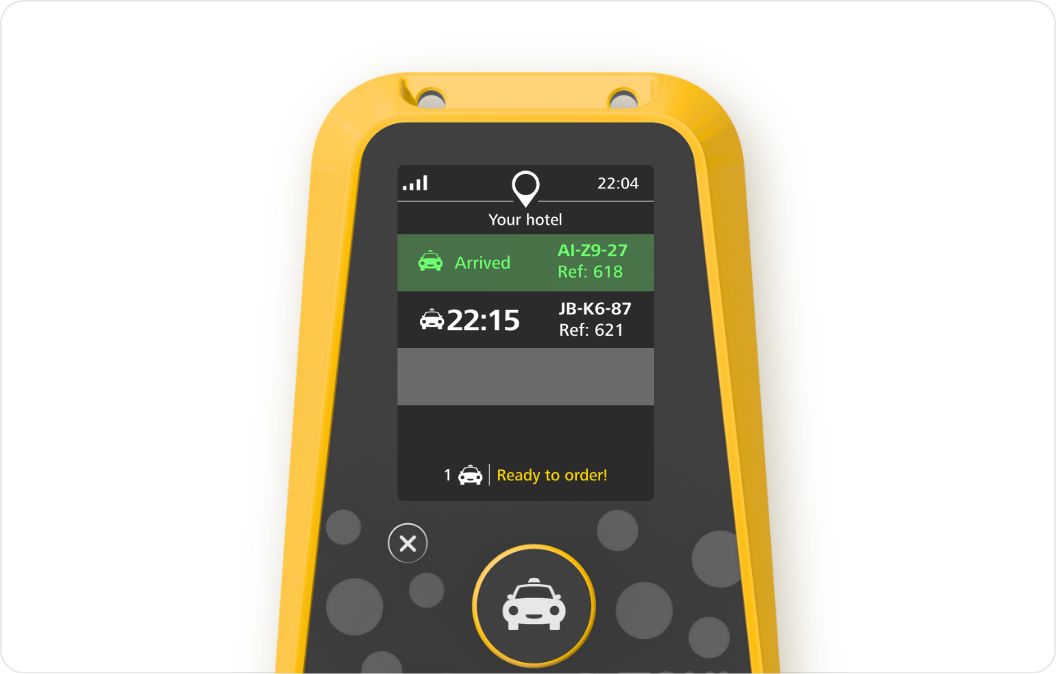
To track a taxi, venue staff can simply check the screen. The booking will show a status, an estimated time of arrival (ETA), driver or vehicle information, and a booking reference number.
The Taxi Butler ONE also has a [Secondary booking mode](/fleets/portal/venues/configuring-devices) to allow users to book a second type of vehicle. Quickly press the "book" button twice to book the second type of vehicle, if configured.
## How to track a taxi
To track a taxi, venue staff can simply check the screen. The booking will show a status, an estimated time of arrival (ETA), driver or vehicle information, and a booking reference number.
 ## How to cancel a taxi
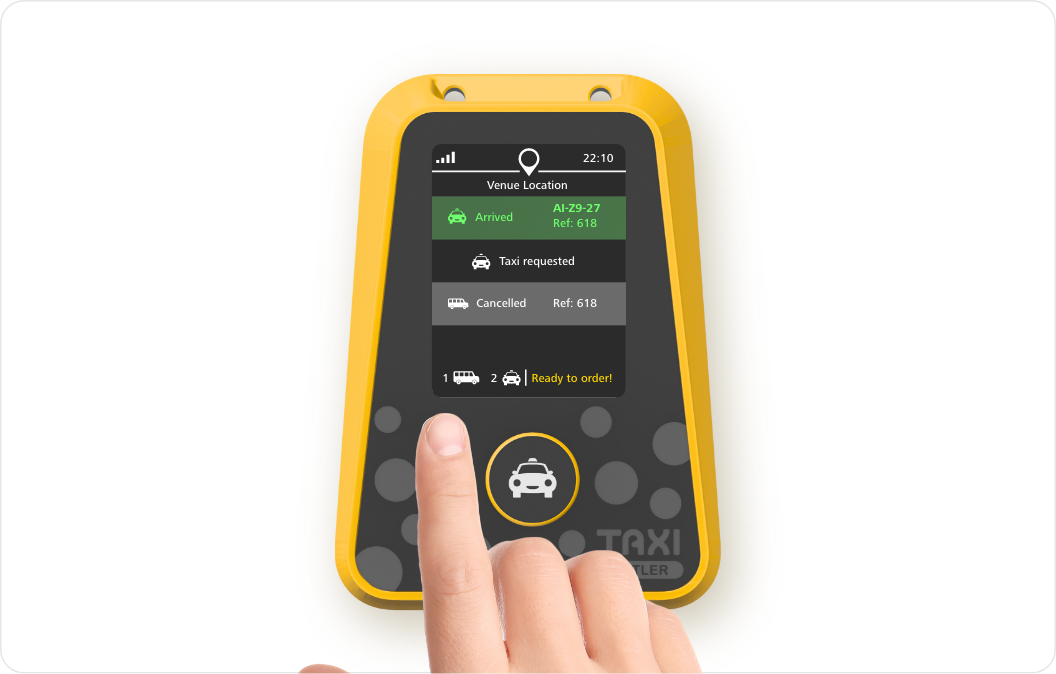
To cancel the most recent taxi, venue staff must press on the physical "cancel" button. The booking status will update on-screen.
## How to cancel a taxi
To cancel the most recent taxi, venue staff must press on the physical "cancel" button. The booking status will update on-screen.
 ## Additional information
### How to power-on & off the device
To power-on the Taxi Butler ONE, simply plug in the power cable into the power input and into a mains outlet. The device will power-on automatically.
To power-off the device, disconnect the power cable on either end.
### How to change the device language
Changing the device language must be done from the PORTAL by [editing the venue settings](/fleets/portal/venues/adding-a-venue#editing-an-existing-venue).
### How to connect the device to the internet network
The Taxi Butler ONE has a built-in SIM card and will connect to the strongest available network automatically.
## Additional information
### How to power-on & off the device
To power-on the Taxi Butler ONE, simply plug in the power cable into the power input and into a mains outlet. The device will power-on automatically.
To power-off the device, disconnect the power cable on either end.
### How to change the device language
Changing the device language must be done from the PORTAL by [editing the venue settings](/fleets/portal/venues/adding-a-venue#editing-an-existing-venue).
### How to connect the device to the internet network
The Taxi Butler ONE has a built-in SIM card and will connect to the strongest available network automatically.