> ## Documentation Index
> Fetch the complete documentation index at: https://docs.taxibutler.com/llms.txt
> Use this file to discover all available pages before exploring further.
# Taxi Butler ONE quickstart guide
> This quickstart guide walks you through the essentials to get started and highlights what you need to know for the Taxi Butler ONE.
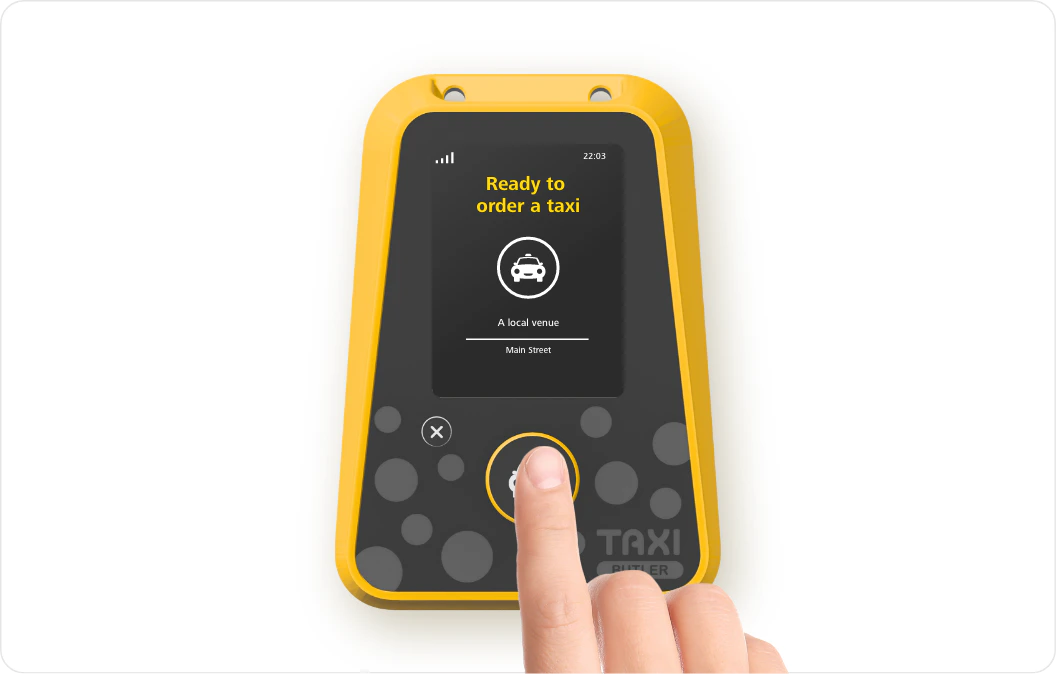 Unbox your device and ensure it has all of its accessories like the power cable and adapter.
[Visit the Taxi Butler PORTAL](https://portal.taxibutler.com) to [log in](/fleets/portal/accessing-the-portal).
You should start by [creating a new venue](/fleets/portal/venues/adding-a-venue) in the PORTAL. Venues are the locations in which you'll deploy your devices.
If you like, you can [configure a secondary booking mode](/fleets/portal/venues/configuring-devices) for your Taxi Butler ONE for this venue.
[Link the Taxi Butler ONE to the venue](/fleets/portal/venues/linking-a-device) and [load the device configuration](/fleets/portal/venues/configuring-devices#reloading-device-configurations) onto the device.
[Physically deploy your devices](/fleets/deployment) in your nearby venues and start automating your bookings!
Unbox your device and ensure it has all of its accessories like the power cable and adapter.
[Visit the Taxi Butler PORTAL](https://portal.taxibutler.com) to [log in](/fleets/portal/accessing-the-portal).
You should start by [creating a new venue](/fleets/portal/venues/adding-a-venue) in the PORTAL. Venues are the locations in which you'll deploy your devices.
If you like, you can [configure a secondary booking mode](/fleets/portal/venues/configuring-devices) for your Taxi Butler ONE for this venue.
[Link the Taxi Butler ONE to the venue](/fleets/portal/venues/linking-a-device) and [load the device configuration](/fleets/portal/venues/configuring-devices#reloading-device-configurations) onto the device.
[Physically deploy your devices](/fleets/deployment) in your nearby venues and start automating your bookings!