> ## Documentation Index
> Fetch the complete documentation index at: https://docs.taxibutler.com/llms.txt
> Use this file to discover all available pages before exploring further.
# How to use the Taxi Butler PRO
> The Taxi Butler PRO is an advanced taxi booking device that lets venue staff book taxis for their guests in just a few simple steps.
## Device overview
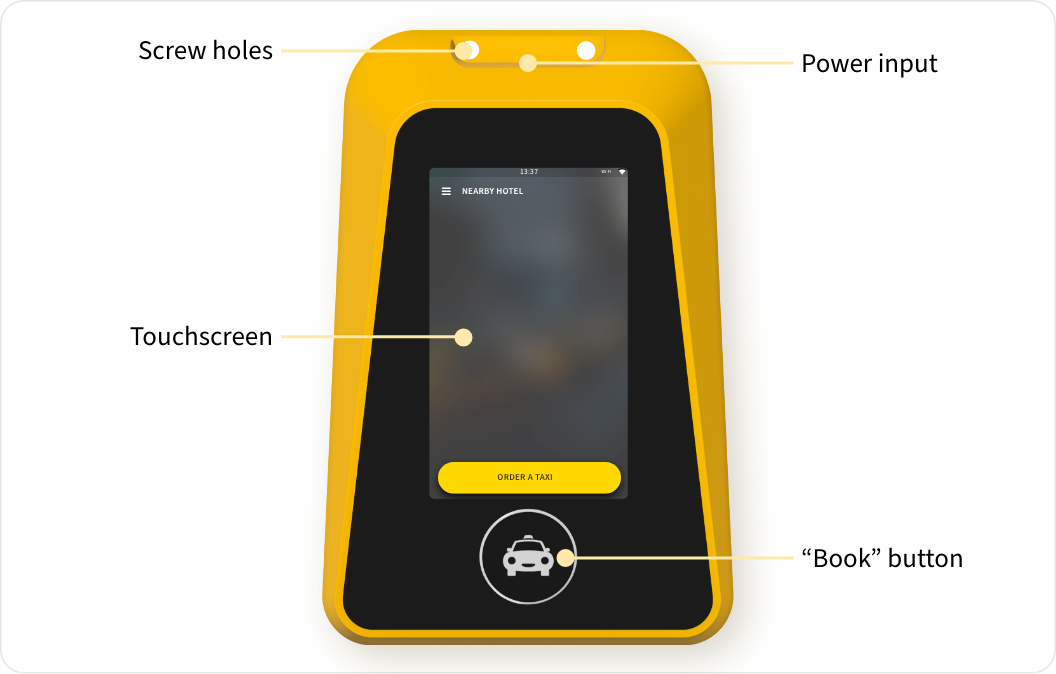 The Taxi Butler PRO features:
* A 5" touchscreen to book, manage and track taxis
* A physical "book" button to book a taxi
* A power input for plugging into the mains-power
* Two screw holes for securing the device to a wall or surface
* Built-in Wi-Fi and SIM card for connecting to the internet
## How to book a taxi
The Taxi Butler PRO features:
* A 5" touchscreen to book, manage and track taxis
* A physical "book" button to book a taxi
* A power input for plugging into the mains-power
* Two screw holes for securing the device to a wall or surface
* Built-in Wi-Fi and SIM card for connecting to the internet
## How to book a taxi
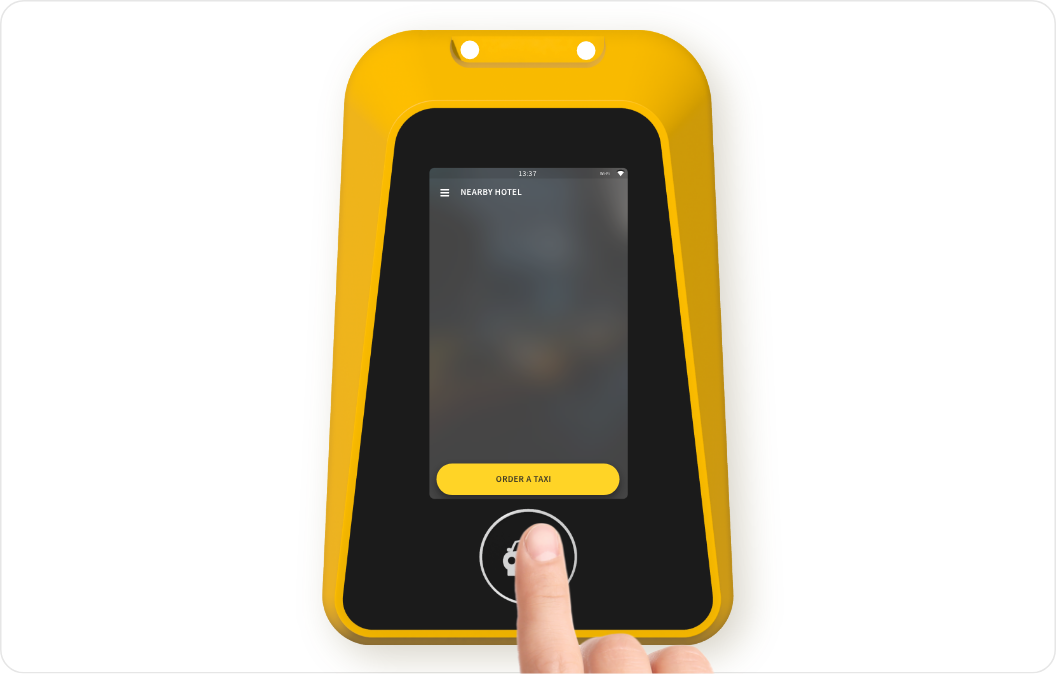 To start a booking, venue staff must press the on-screen “Book” button or the physical button on the device.
Venue staff can be anyone who works inside a hotel, bar, restaurant or any other public business in which the device is placed and used to book taxis on behalf of guests.
To start a booking, venue staff must press the on-screen “Book” button or the physical button on the device.
Venue staff can be anyone who works inside a hotel, bar, restaurant or any other public business in which the device is placed and used to book taxis on behalf of guests.
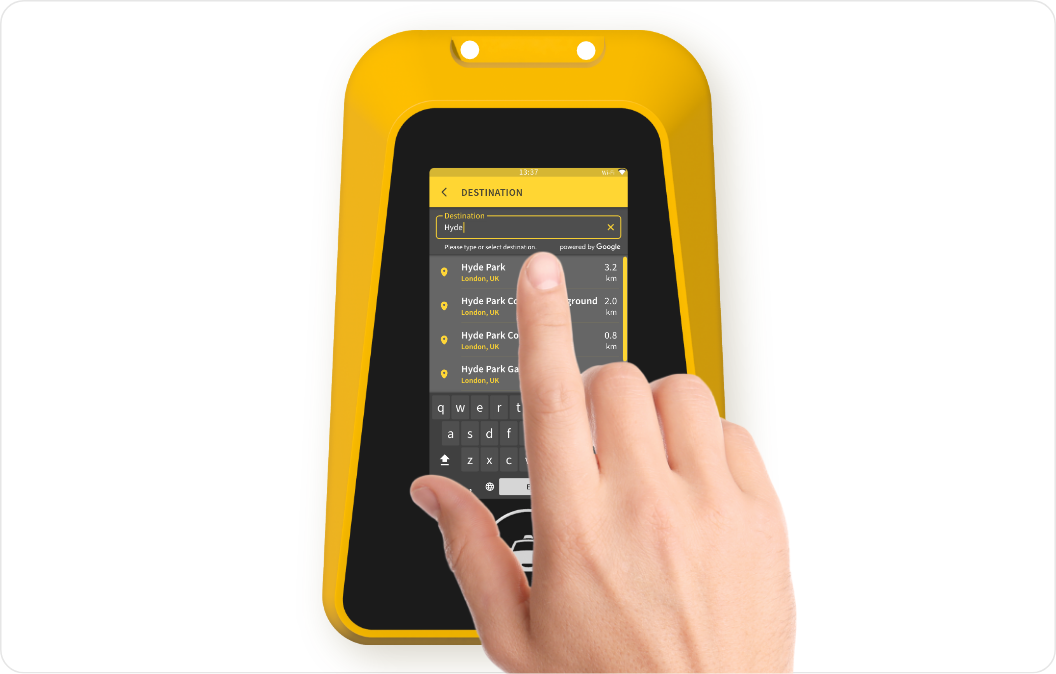 Venue staff must use the touchscreen to enter all the required and/or optional guest details that are [configured for the device](/fleets/portal/venues/configuring-devices#taxi-butler-pro-plus-and-kiosk).
When a "Passenger phone" is required, a guest's actual phone number must be provided, otherwise they will not receive the text message with a link to track, manage and cancel the booking and a link to the terms & conditions.
Venue staff must use the touchscreen to enter all the required and/or optional guest details that are [configured for the device](/fleets/portal/venues/configuring-devices#taxi-butler-pro-plus-and-kiosk).
When a "Passenger phone" is required, a guest's actual phone number must be provided, otherwise they will not receive the text message with a link to track, manage and cancel the booking and a link to the terms & conditions.
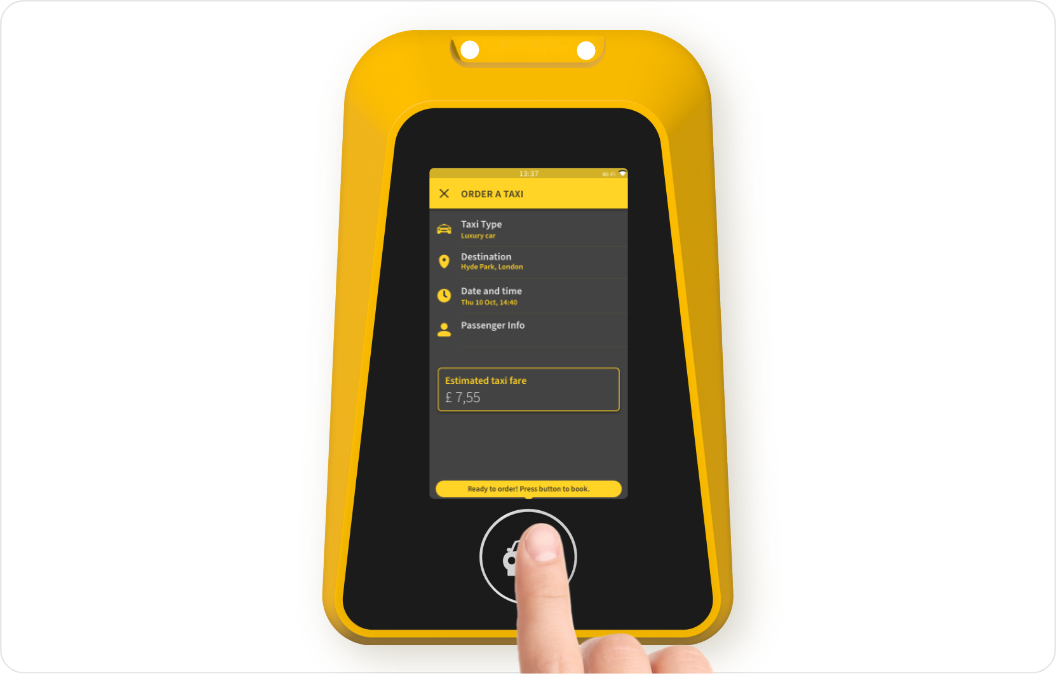 Venue staff should now review the booking to ensure that all the booking and guest details are correct.
The guest must be informed the SMS to track their taxi, the fare estimate and any applicable terms and fees before checking the consent checkboxes when applicable.
Venue staff can now press the physical button on the device to book the taxi.
Venue staff should now review the booking to ensure that all the booking and guest details are correct.
The guest must be informed the SMS to track their taxi, the fare estimate and any applicable terms and fees before checking the consent checkboxes when applicable.
Venue staff can now press the physical button on the device to book the taxi.
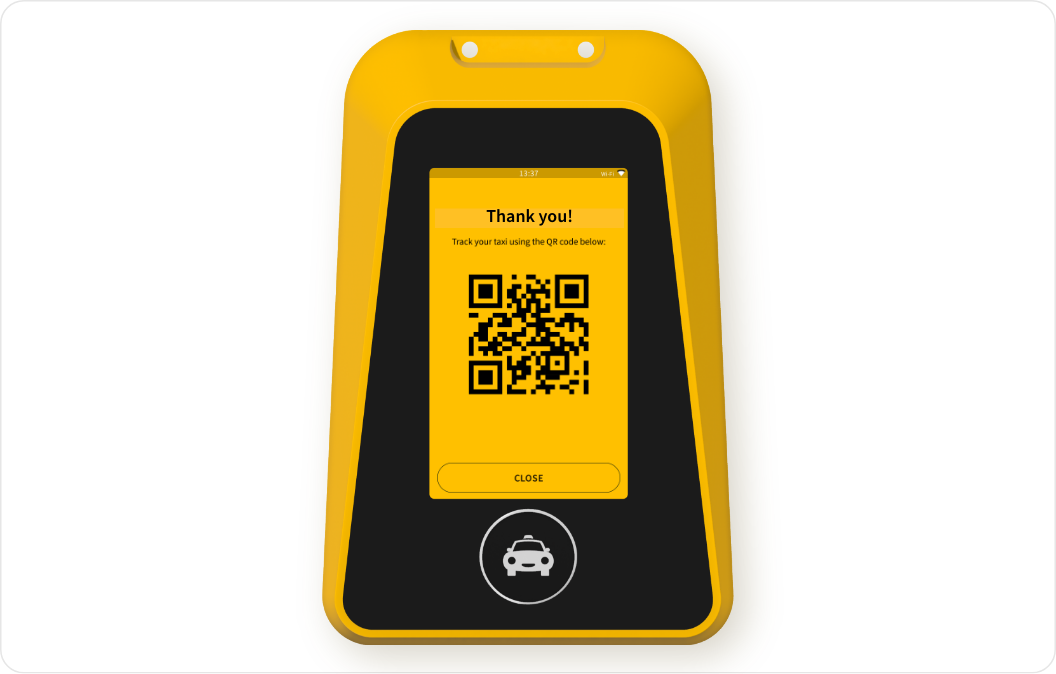 Guests can now scan the QR code on-screen to track their taxi with the [Mobile Booking Tracker](/fleets/other/mobile-booking-tracker).
By scanning the QR code on-screen, the guest will be taken to the [Mobile Booking Tracker](/fleets/other/mobile-booking-tracker) where they can track, manage and cancel their taxi, find applicable terms & conditions and contact the transportation provider. In some cases, the guest will also receive an SMS with a link to the Mobile Booking Tracker.
## How to track a booking
To track taxis, passengers can scan the QR code on-screen that takes them to the [Mobile Booking Tracker](/fleets/other/mobile-booking-tracker) on their mobile phone. From this interface, passengers can track, manage and cancel their taxi, find application terms & conditions and contact the transportation provider.
Venue staff can track a booking on the device itself by clicking on an active or planned booking. See below for more information.
## How to manage bookings
To manage a booking, venue staff can see any requested, ongoing, cancelled or completed bookings on the home screen. From there, they can press on a specific booking to track the status of the booking, show the QR code again, or cancel the booking.
Only requested or ongoing bookings can be cancelled.
Active bookings can have different statuses like: "Driving to pickup", "Arrived at pickup" and "Cancelled". Planned bookings remain "Planned" until the trip is dispatched. [Learn more about booking statuses](/fleets/portal/pages/bookings#booking-statuses).
To manage Planned bookings, venue staff can press on the white "Prebooking" card to view all Planned bookings.
The "Prebooking" card will only show when there is at least one Planned booking.
## Additional information
### How to power-on & off the device
To power on the device, press and hold the power button for 2-3 seconds when the device is OFF.
To power off the device, press and hold the power button for 2-3 seconds when the device is ON.
### Accessing advanced settings
Click on the Menu icon in the top left of the screen and then click on “Advanced settings”.
A password may be required to access these settings. Typically, the password is “user”.
### How to connect the device to a Wi-Fi network
The Taxi Butler PRO comes with a built-in SIM card. It's highly recommended to use a local Wi-Fi network when possible.
To connect the device to a Wi-Fi network, simply press on the Menu icon, then press on "Wi-Fi". You can select a network and enter the correct password to connect.
### How to change the device language
To change the interface language, simply press on the Flag icon in the top-right of the home screen, then select a language from the list and press "Select".
Guests can now scan the QR code on-screen to track their taxi with the [Mobile Booking Tracker](/fleets/other/mobile-booking-tracker).
By scanning the QR code on-screen, the guest will be taken to the [Mobile Booking Tracker](/fleets/other/mobile-booking-tracker) where they can track, manage and cancel their taxi, find applicable terms & conditions and contact the transportation provider. In some cases, the guest will also receive an SMS with a link to the Mobile Booking Tracker.
## How to track a booking
To track taxis, passengers can scan the QR code on-screen that takes them to the [Mobile Booking Tracker](/fleets/other/mobile-booking-tracker) on their mobile phone. From this interface, passengers can track, manage and cancel their taxi, find application terms & conditions and contact the transportation provider.
Venue staff can track a booking on the device itself by clicking on an active or planned booking. See below for more information.
## How to manage bookings
To manage a booking, venue staff can see any requested, ongoing, cancelled or completed bookings on the home screen. From there, they can press on a specific booking to track the status of the booking, show the QR code again, or cancel the booking.
Only requested or ongoing bookings can be cancelled.
Active bookings can have different statuses like: "Driving to pickup", "Arrived at pickup" and "Cancelled". Planned bookings remain "Planned" until the trip is dispatched. [Learn more about booking statuses](/fleets/portal/pages/bookings#booking-statuses).
To manage Planned bookings, venue staff can press on the white "Prebooking" card to view all Planned bookings.
The "Prebooking" card will only show when there is at least one Planned booking.
## Additional information
### How to power-on & off the device
To power on the device, press and hold the power button for 2-3 seconds when the device is OFF.
To power off the device, press and hold the power button for 2-3 seconds when the device is ON.
### Accessing advanced settings
Click on the Menu icon in the top left of the screen and then click on “Advanced settings”.
A password may be required to access these settings. Typically, the password is “user”.
### How to connect the device to a Wi-Fi network
The Taxi Butler PRO comes with a built-in SIM card. It's highly recommended to use a local Wi-Fi network when possible.
To connect the device to a Wi-Fi network, simply press on the Menu icon, then press on "Wi-Fi". You can select a network and enter the correct password to connect.
### How to change the device language
To change the interface language, simply press on the Flag icon in the top-right of the home screen, then select a language from the list and press "Select".