> ## Documentation Index
> Fetch the complete documentation index at: https://docs.taxibutler.com/llms.txt
> Use this file to discover all available pages before exploring further.
# How to use Taxi Butler Guest QR
> Taxi Butler Guest QR is a mobile web interface for guests to book to taxis from their own smartphones by simply scanning a QR code.
Taxi Butler Guest QR codes can be [generated and downloaded from the Taxi Butler PORTAL](/fleets/qr/setup).
## How to book a taxi
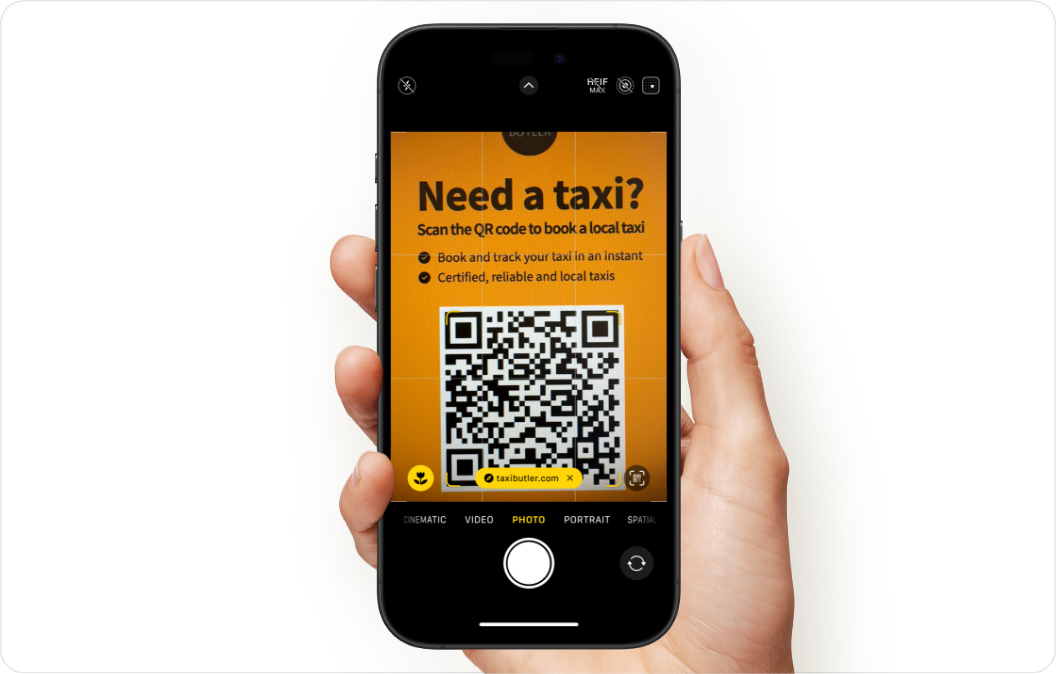 To start a booking, a guest must scan a Guest QR code.
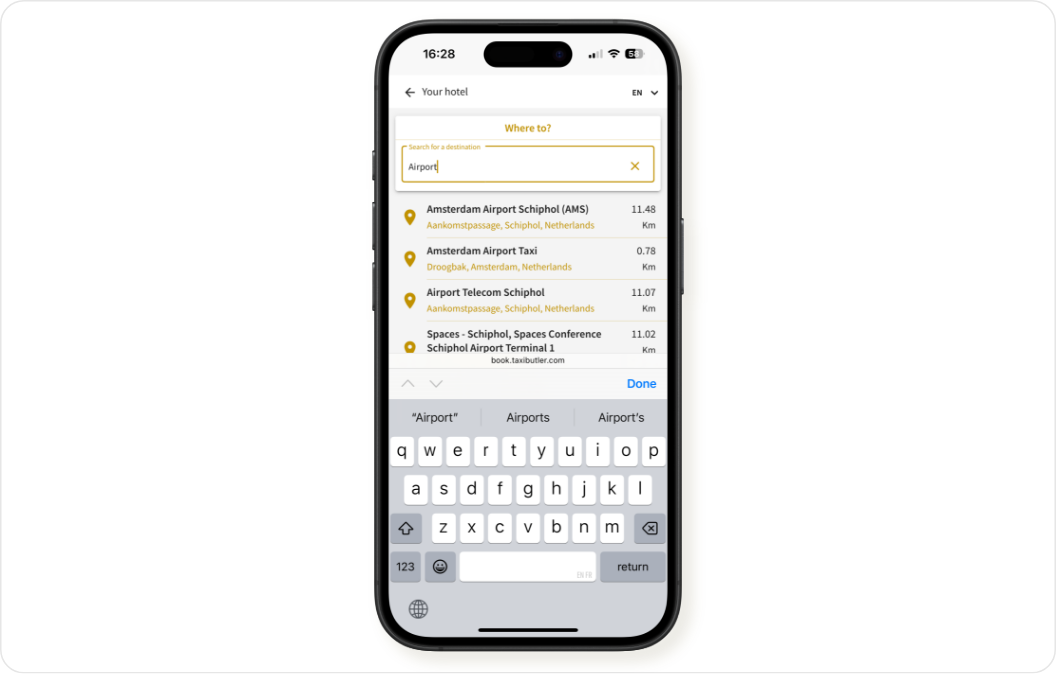 The guest will be taken to the Guest QR booking interface where they'll see the venues position on the map.
The guest must start by searching for and selecting their destination.
The guest will be taken to the Guest QR booking interface where they'll see the venues position on the map.
The guest must start by searching for and selecting their destination.
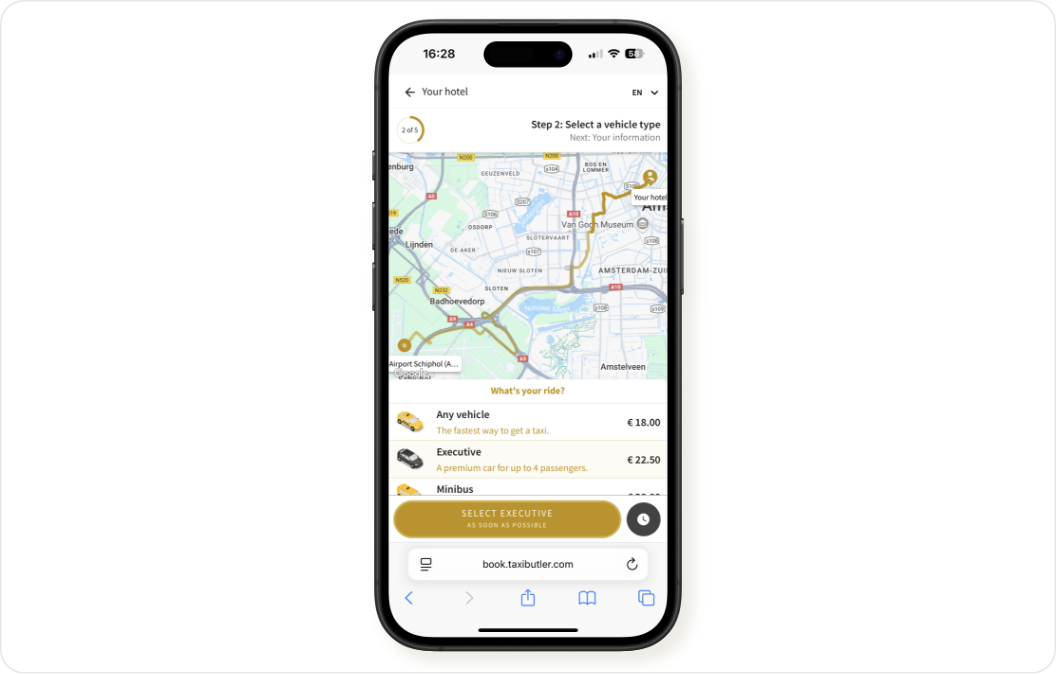 Next, the guest must choose a taxi type that you [set up in the configuration](/fleets/portal/venues/configuring-devices#taxi-butler-guest-qr).
The guest will see the taxi type name, description and a fare estimate for each type.
Next, the guest must choose a taxi type that you [set up in the configuration](/fleets/portal/venues/configuring-devices#taxi-butler-guest-qr).
The guest will see the taxi type name, description and a fare estimate for each type.
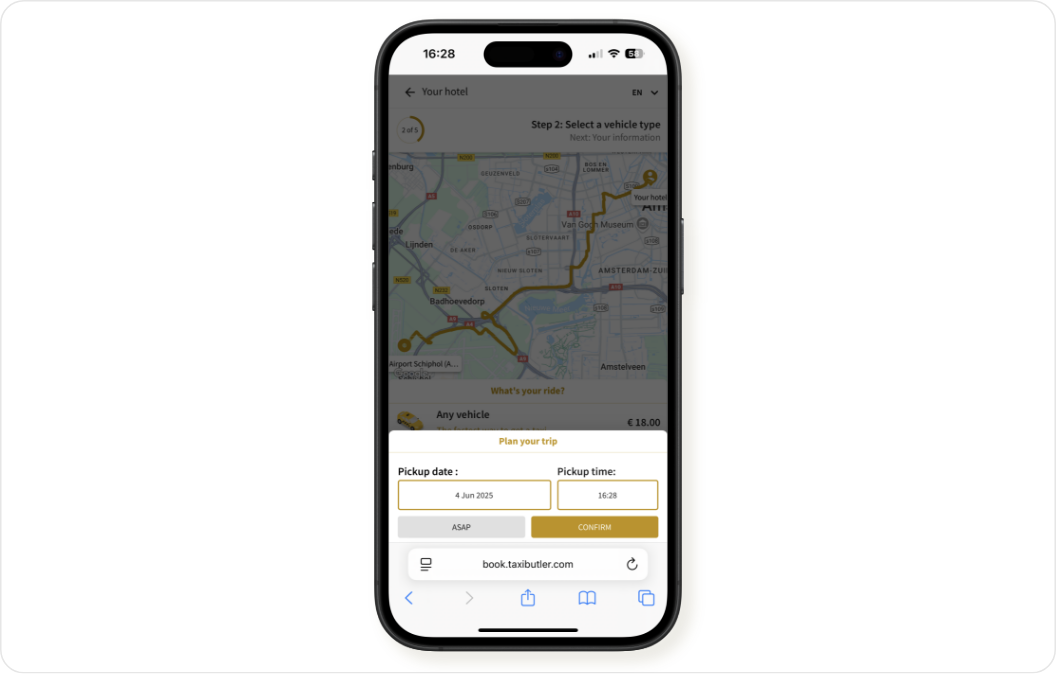 If you enabled "Future Bookings" in the [configuration](/fleets/portal/venues/configuring-devices#taxi-butler-guest-qr), the guest can click on the clock icon in the bottom left to choose a pick-up time.
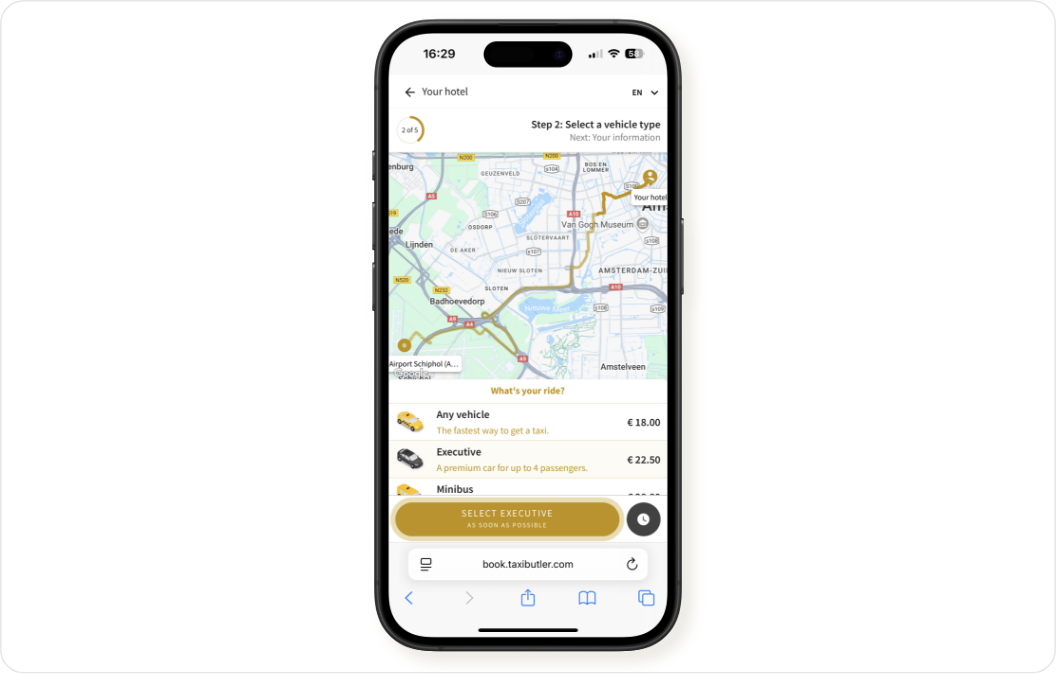 To proceed, the guest must click on the "Select `taxi type` as soon as possible / `pick-up time` " button.
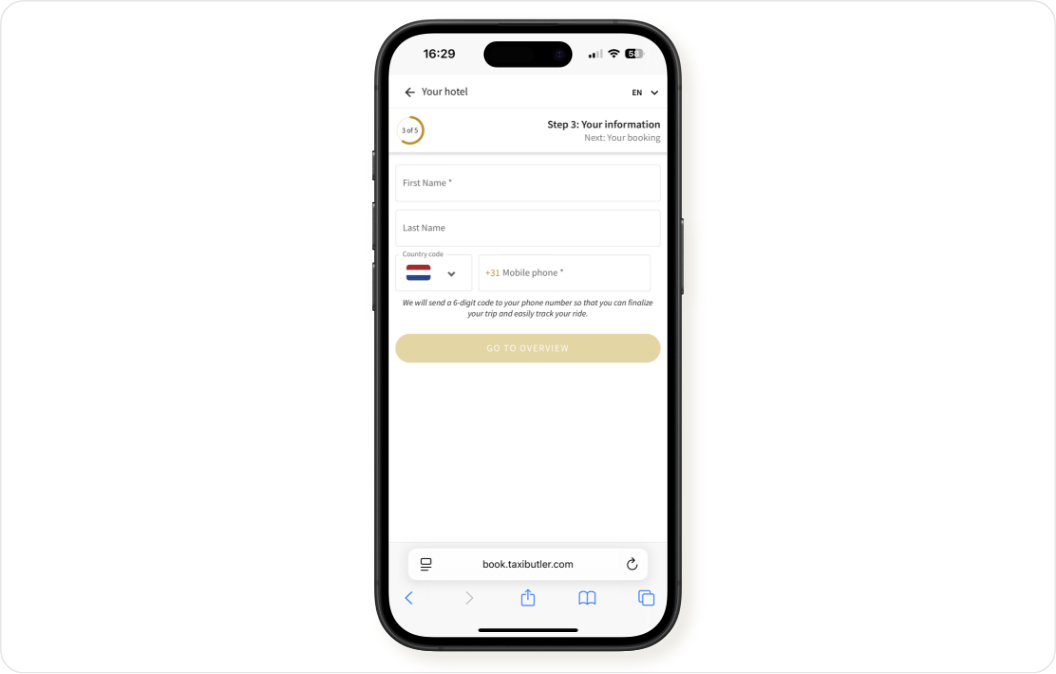 The guest must now enter their name (first name is mandatory) and their mobile phone number. Then, click on "Go to overview".
The guest must enter a valid phone number, otherwise they won't be able to proceed with the SMS authentication.
The guest must now enter their name (first name is mandatory) and their mobile phone number. Then, click on "Go to overview".
The guest must enter a valid phone number, otherwise they won't be able to proceed with the SMS authentication.
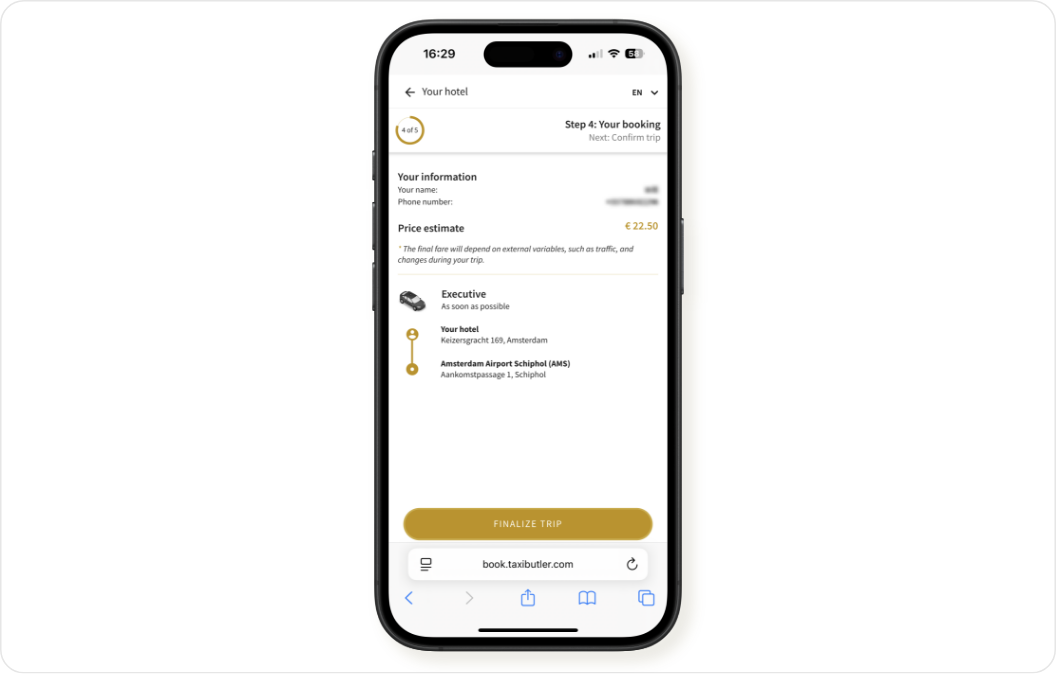 The guest will be presented with an overview of their booking, including their information, a price estimate, the taxi type, and the pick-up location and destination.
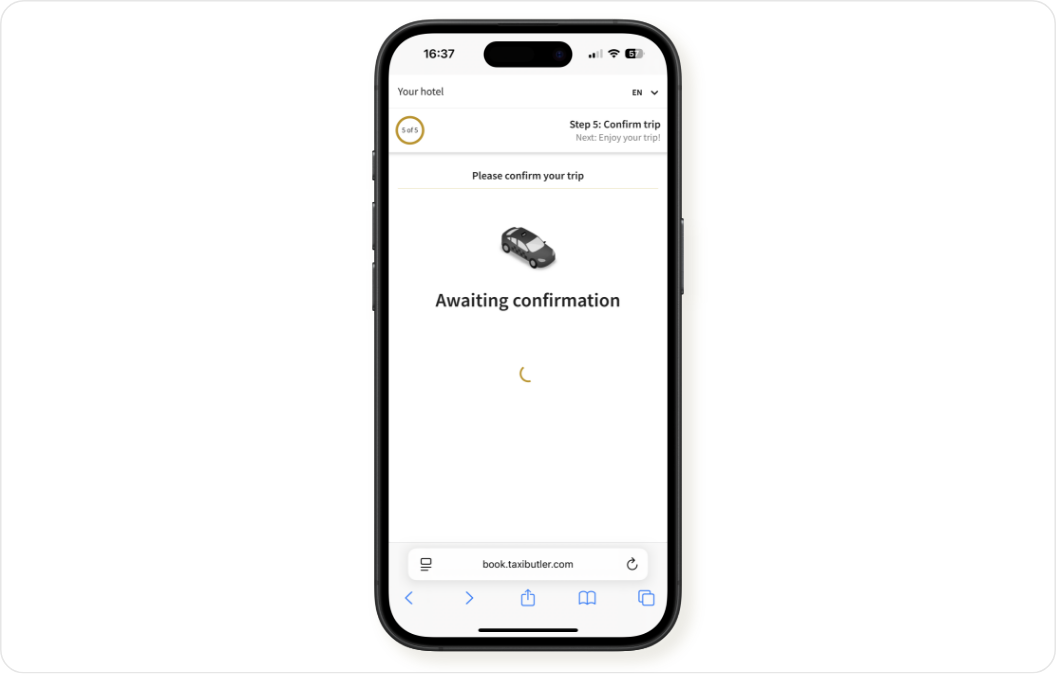 The guest will now receive an SMS with a 6-digit code that they must enter into the booking interface. Once done, this will confirm their booking.
They'll automatically be redirected to the [Mobile Booking Tracker](/fleets/other/mobile-booking-tracker) to track, manage and cancel their taxi.
## How to track a booking
To track their taxi, passengers will automatically be redirected to the [Mobile Booking Tracker](/fleets/other/mobile-booking-tracker) once their booking is confirmed. From this interface, passengers can track, manage and cancel their taxi, find application terms & conditions and contact the transportation provider.
## How to manage bookings
With Taxi Butler Guest QR, bookings must be managed by passengers themselves with the [Mobile Booking Tracker](/fleets/other/mobile-booking-tracker).
## How to design and print materials
For your Taxi Butler Guest QR code to be used by guests inside venues, you will need to download the QR code and get it printed on various materials like:
* Flyers for reception desks
* Roll-up banners for high-traffic areas like airport terminals or lobbies
* Business cards for more discreet placements
* Stickers on hotel room doors, entrances, etc.
To design the materials mentioned above, you can use our online [template building tool](https://hub.taxibutler.com/taxi-butler-qr/template-builder-v2/?isc=1).
### Template building tool
The online [template building tool](https://hub.taxibutler.com/taxi-butler-qr/template-builder-v2/?isc=1) allows you to easily create materials for your Taxi Butler Guest QR codes. The tool helps you create A5 materials with pre-designed elements.
With the template building tool, you can:
* Upload a Taxi Butler Guest QR code that you [downloaded from the PORTAL](/fleets/qr/setup#how-to-download-a-guest-qr-code)
Once you've uploaded the QR code, you can edit the name of the venue that appears at the bottom of the template.
* Upload your own logo
* Customise the background and text colours
* Change the "taxi" wording to "cab", "driver", or "car"
* Add an additional bullet point
* Download the template in `png` format
Once you've downloaded the template, you can easily upload it to online printing tools like Vistaprint.
Alternatively, you can use own marketing & design teams, or use online tools like Canva, to create your Taxi Butler Guest QR materials.
The guest will now receive an SMS with a 6-digit code that they must enter into the booking interface. Once done, this will confirm their booking.
They'll automatically be redirected to the [Mobile Booking Tracker](/fleets/other/mobile-booking-tracker) to track, manage and cancel their taxi.
## How to track a booking
To track their taxi, passengers will automatically be redirected to the [Mobile Booking Tracker](/fleets/other/mobile-booking-tracker) once their booking is confirmed. From this interface, passengers can track, manage and cancel their taxi, find application terms & conditions and contact the transportation provider.
## How to manage bookings
With Taxi Butler Guest QR, bookings must be managed by passengers themselves with the [Mobile Booking Tracker](/fleets/other/mobile-booking-tracker).
## How to design and print materials
For your Taxi Butler Guest QR code to be used by guests inside venues, you will need to download the QR code and get it printed on various materials like:
* Flyers for reception desks
* Roll-up banners for high-traffic areas like airport terminals or lobbies
* Business cards for more discreet placements
* Stickers on hotel room doors, entrances, etc.
To design the materials mentioned above, you can use our online [template building tool](https://hub.taxibutler.com/taxi-butler-qr/template-builder-v2/?isc=1).
### Template building tool
The online [template building tool](https://hub.taxibutler.com/taxi-butler-qr/template-builder-v2/?isc=1) allows you to easily create materials for your Taxi Butler Guest QR codes. The tool helps you create A5 materials with pre-designed elements.
With the template building tool, you can:
* Upload a Taxi Butler Guest QR code that you [downloaded from the PORTAL](/fleets/qr/setup#how-to-download-a-guest-qr-code)
Once you've uploaded the QR code, you can edit the name of the venue that appears at the bottom of the template.
* Upload your own logo
* Customise the background and text colours
* Change the "taxi" wording to "cab", "driver", or "car"
* Add an additional bullet point
* Download the template in `png` format
Once you've downloaded the template, you can easily upload it to online printing tools like Vistaprint.
Alternatively, you can use own marketing & design teams, or use online tools like Canva, to create your Taxi Butler Guest QR materials.